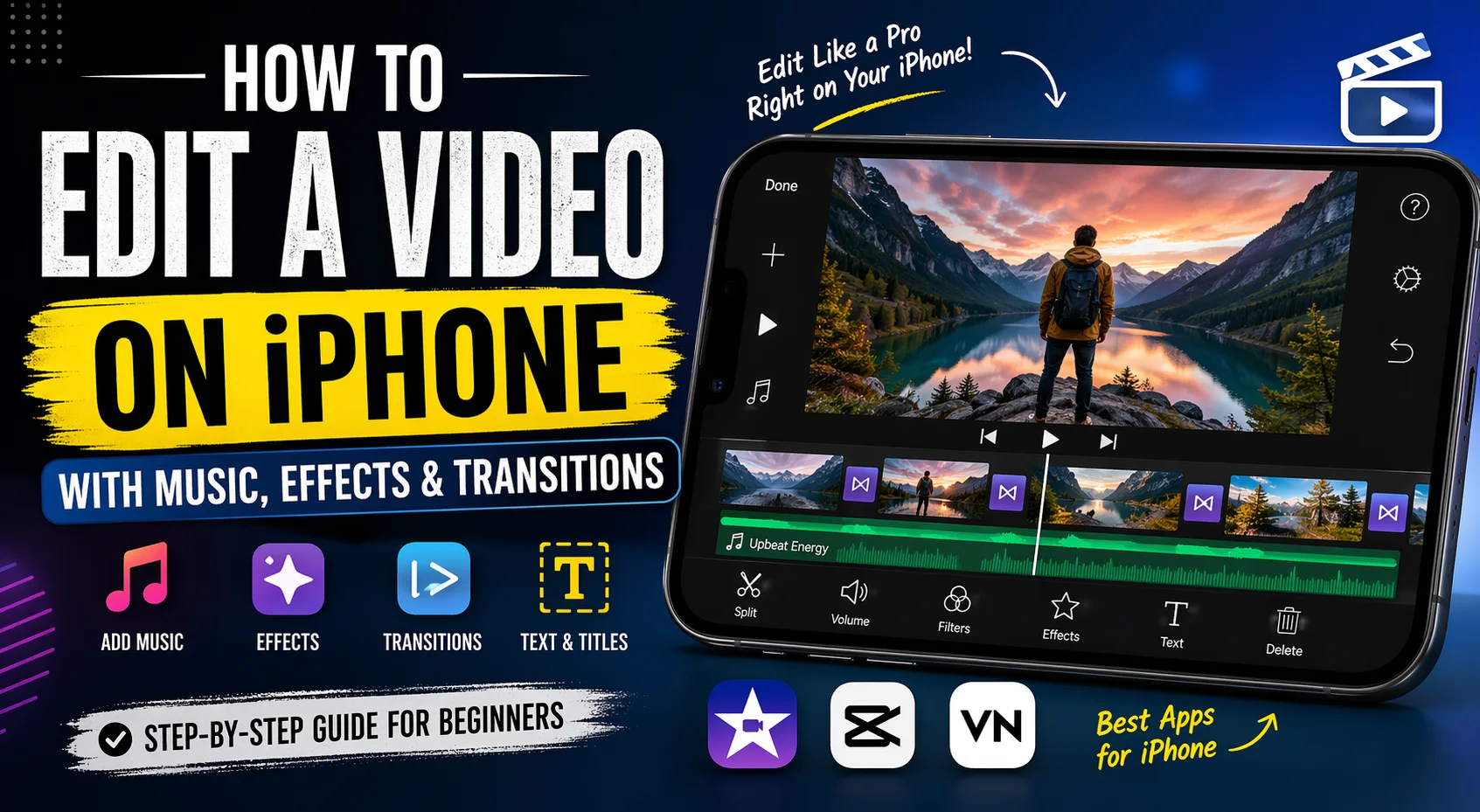
Editing videos on your iPhone is no longer a basic task, it’s a complete content creation system in your pocket. Whether you’re creating content for YouTube, Reels, or TikTok, mastering the right mobile video editing techniques can instantly elevate your content quality. This iPhone video editing tutorial will walk you through everything step by step, from trimming clips to adding music, effects, and transitions.
If you’re a beginner or looking to improve your workflow, this guide will help you edit videos on iPhone step by step using both built-in and advanced apps.
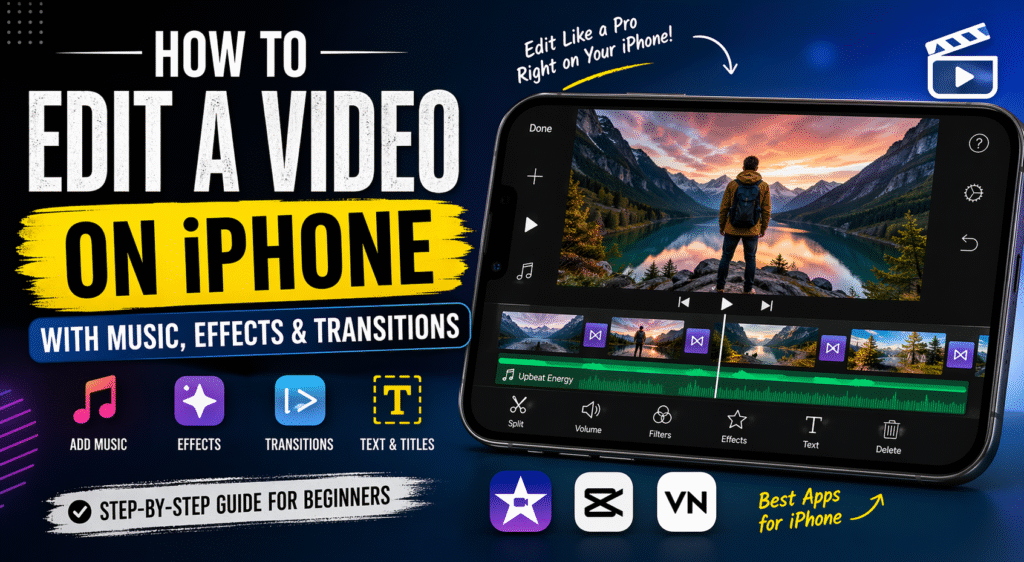
Best Video Editing Apps for iPhone
Choosing the right tool defines your editing speed and output quality. Some of the best video editing apps for iPhone include:
- iMovie (built-in and beginner-friendly)
- CapCut (advanced features and trending effects)
- VN Editor (clean interface for professional edits)
If you’re just starting, go with iMovie. If you want more creative control, try to edit videos with CapCut iPhone for transitions, effects, and templates.
Step-by-Step Video Editing Workflow on iPhone
A structured video editing workflow on iPhone keeps your process fast and efficient.
1. Import and Organize Clips
Start by importing your footage into your editing app. Arrange clips in the correct sequence to maintain flow.
2. Trim and Cut Clips
To trim video on iPhone, remove unwanted parts from the beginning and end. Use split tools to cut and merge videos iPhone for smoother storytelling.
3. Adjust Video Settings
Optimizing iPhone video editing settings ensures better output. Always edit in the same resolution you shot in, especially if you plan to edit 4K video on iPhone.
How to Add Music to iPhone Videos
Audio transforms your content. To add music to iPhone videos, follow these steps:
- Import music from your library or app collection
- Sync beats with cuts for better engagement
- Adjust volume levels to balance voice and background music
You can also record a voiceover on iPhone video to explain or narrate your content.
Add Transitions and Effects Like a Pro
Smooth visuals keep viewers hooked.
Add Transitions in iPhone Videos
Use fade, slide, or zoom transitions to connect clips seamlessly. Don’t overuse them, clean transitions always perform better.
Add Filters and Effects
To enhance visuals, add filters to iPhone videos and adjust brightness, contrast, and saturation. This is where color grading on iPhone videos comes into play for a cinematic feel.
Add Text and Captions
To add text to video iPhone, include:
- Titles for context
- Subtitles for engagement
- Call-to-actions for conversions
Text overlays are essential when you create reels on iPhone editing or edit TikTok videos on iPhone, as most users watch without sound.
Advanced Editing Techniques for Better Results
Once you master basics, move to advanced edits:
- Edit cinematic videos iPhone using slow motion and color grading
- Edit slow motion video iPhone to highlight key moments
- Stabilize shaky video iPhone for a professional look
- Apply mobile video editing techniques like jump cuts and match cuts
These techniques push your content from average to professional.
Export Video in High Quality
After editing, it’s time to export.
- Choose the highest resolution possible
- Optimize iPhone video quality settings
- Use proper formats depending on platform
Always export video from iPhone editing apps in HD or 4K for platforms like YouTube and Instagram.
iPhone Video Editing Tips for Faster Workflow
Speed matters in content creation. Here are some iPhone video editing tips:
- Use templates for fast video editing on iPhone
- Keep clips short and engaging
- Follow a repeatable editing structure
- Use keyboard shortcuts (if app supports)
These tips help in professional video editing on iPhone without wasting time.
Editing for Different Platforms
Different platforms need different styles:
- Edit YouTube videos on iPhone with longer format and storytelling
- Keep Reels short and hook-driven
- Focus on trends when you edit TikTok videos on iPhone
Each platform requires a tailored editing approach.
Free iPhone Video Editor Apps to Get Started
If you’re on a budget, there are excellent free iPhone video editor apps like:
- iMovie
- CapCut
- VN Editor
These apps offer enough features for beginner video editing iPhone users while still supporting advanced workflows.
FAQs
How to use iMovie on iPhone for editing?
Start by importing clips, trimming footage, adding music, and applying transitions. It’s the easiest tool for beginners.
What is the best way to add music to iPhone videos?
Use built-in libraries or import audio files, then sync them with your clips for better engagement.
Can I edit 4K video on iPhone smoothly?
Yes, newer iPhones support edit 4K video on iPhone with optimized performance.
How to stabilize shaky video on iPhone?
Use stabilization tools available in apps like CapCut or iMovie.
Which app is best for professional video editing on iPhone?
CapCut and VN Editor are great for advanced editing and effects.
Conclusion
Mastering how to edit a video on iPhone is all about combining the right tools with a structured workflow. From trimming clips to adding music, transitions, and effects, your iPhone can handle everything you need for high-quality content creation.
Consistency, creativity, and smart editing decisions will help you stand out, whether you’re building a brand, growing a channel, or running an agency.
References
https://www.apple.com/imovie/
https://apps.apple.com/us/app/capcut-video-editor/id1500855883
https://www.apple.com/iphone/